|
|||||
| Home | Screen Captures | Buy Now | Online Store | Downloads | Contact Us |
|
SD Quads™ for Windows® Real-time GPS positioning on USGS Digital Topo Maps With Auto-stitch™ technology! Features List
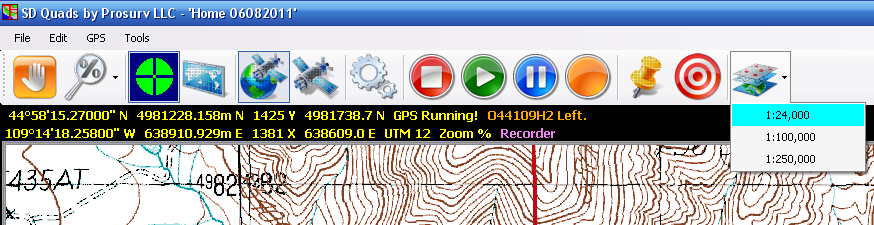
¨ First and foremost, we designed SD Quads to be EASY TO USE. ¨ With just one click of the GPS icon, SD Quads connects to your GPS receiver and looks for the 7.5’ Quad at your current latitude and longitude. It then automatically loads the correct topo map, centering the map based on your position! ¨ This is the ONLY software that we know of that stitches topo maps together, on the fly, as you drive down the road--always keeping you centered on a topo map, guaranteeing that you have plenty of topo map area around your location at all times. Even if your position currently puts you in the Southwest corner of a 7.5’ quad, SD Quads will stitch 4 quads together in real time! ¨ Next, we built in functionality that makes this program truly remarkable. One example is being able to work with coordinates that are in a different Zone than the Image is in. Click here to learn more. ¨ The Main Toolbar gives you most of the functions that you need to use (see above): ¨ Pan; Zoom; Center on GPS; Prosurv Imaging; GPS on/off; Satellites; Options; ¨ Stop Recording; Playback recorded waypoints; Pause recording/playback; Record waypoints (time or distance recording) ¨ Toggle the Click Waypoint screen; Select map scale (1:24,000/1:100,000/1:250,000) ¨ File Menu ¨ Feature Name searches. Included in SD Quads is the entire GNIS Database for the state. The GNIS database has thousands of ‘features’, such as “Old Faithful”. Just type in a feature name and SD Quads will find any matching features. Select the feature that you want and then hit the GO button. SD Quads will load the map containing the feature, and will center on that feature. ¨ Radial feature searches. Search for things like “closest falls” within a given radius from your current GPS location or a Waypoint. ¨ New Trail File and Open Trail File. With the SD Quads Trail Files, you can record waypoints, playback recorded routes, display pictures with waypoints and much more! ¨ Import / Export GPX files. Import / Export Points files. Export ‘All Data’ as a .csv file. ¨ Edit Menu ¨ Enter Waypoint ¨ Edit Waypoints, including changing the associated symbol and picture! ¨ Tap View / Distance / Data ¨ GPS Menu ¨ Start / Stop GPS ¨ View GPS Data ¨ View GPS Satellites ¨ Tools ¨ Set Quad (map) Path (this is where you’ve put the SD Quads’ SD Card). ¨ Image and Job Zone Settings
Download the PDF Installation and User Guide by clicking here
|
|||||
|
(c) Copyright 2011 Prosurv LLC |
|||||
|
he features link to see more SD Quads™ features. |
|||||